> ## Documentation Index
> Fetch the complete documentation index at: https://help-onechatai.telavi.com.ph/llms.txt
> Use this file to discover all available pages before exploring further.

# Website Chatbot

> This guide will walk you through the steps to create your Website Chatbot.

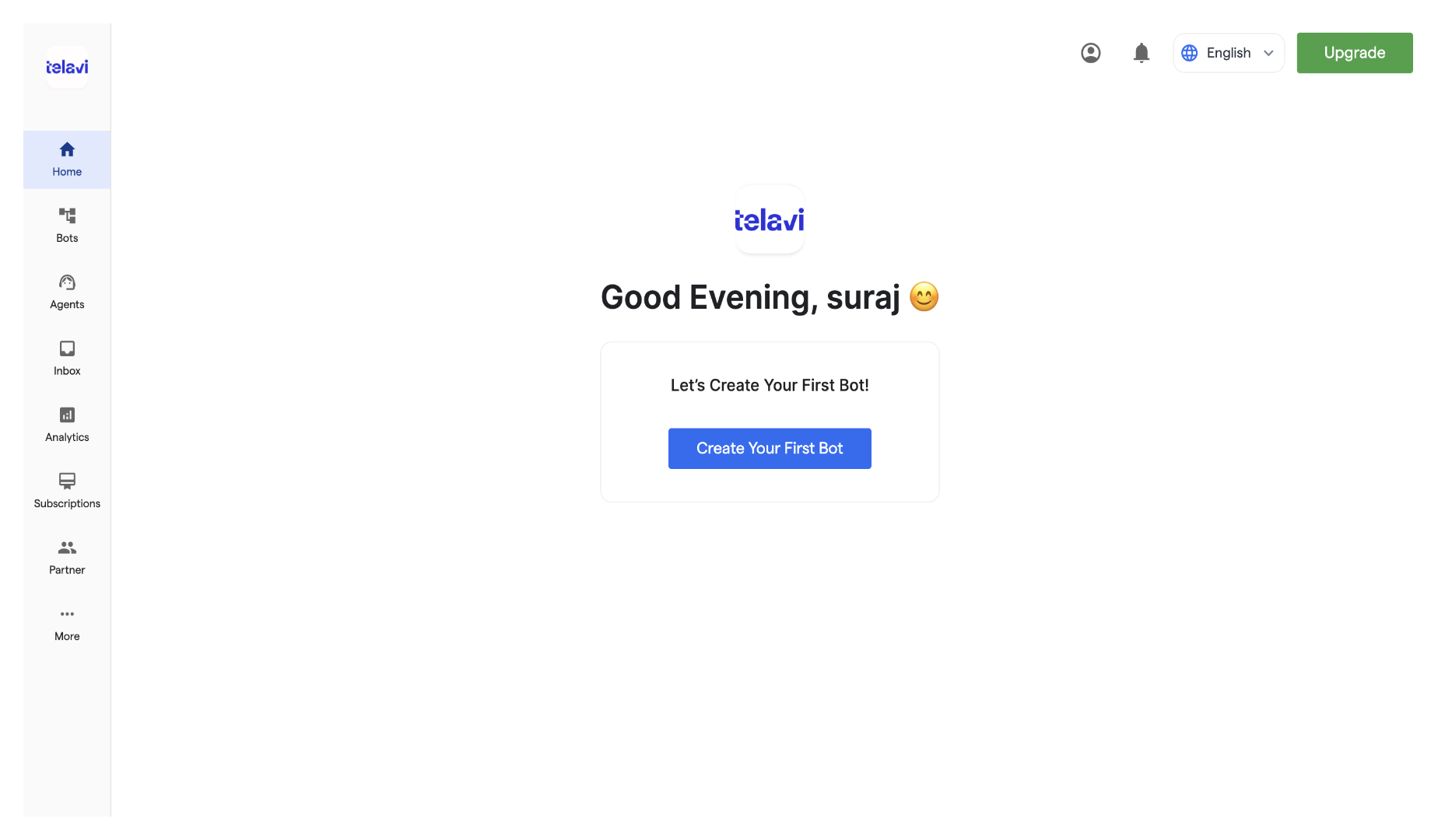
1. To create your Website chatbot , you first need to visit the  TelaviOneChatAI Dashboard
<img src="https://mintcdn.com/telavi/Ft7BKZGbDlbNBral/images/how-TelaviOneChatAI-works/create-newchatbot/5.website_chatbot__TelaviOneChatAI_resource_centre-1.png?fit=max&auto=format&n=Ft7BKZGbDlbNBral&q=85&s=47f6ae06275132ded78274de4d0514cf" alt="5 Website Chatbot TelaviOneChatAI Resource Centre 1 Pn" width="1866" height="1080" data-path="images/how-TelaviOneChatAI-works/create-newchatbot/5.website_chatbot__TelaviOneChatAI_resource_centre-1.png" />

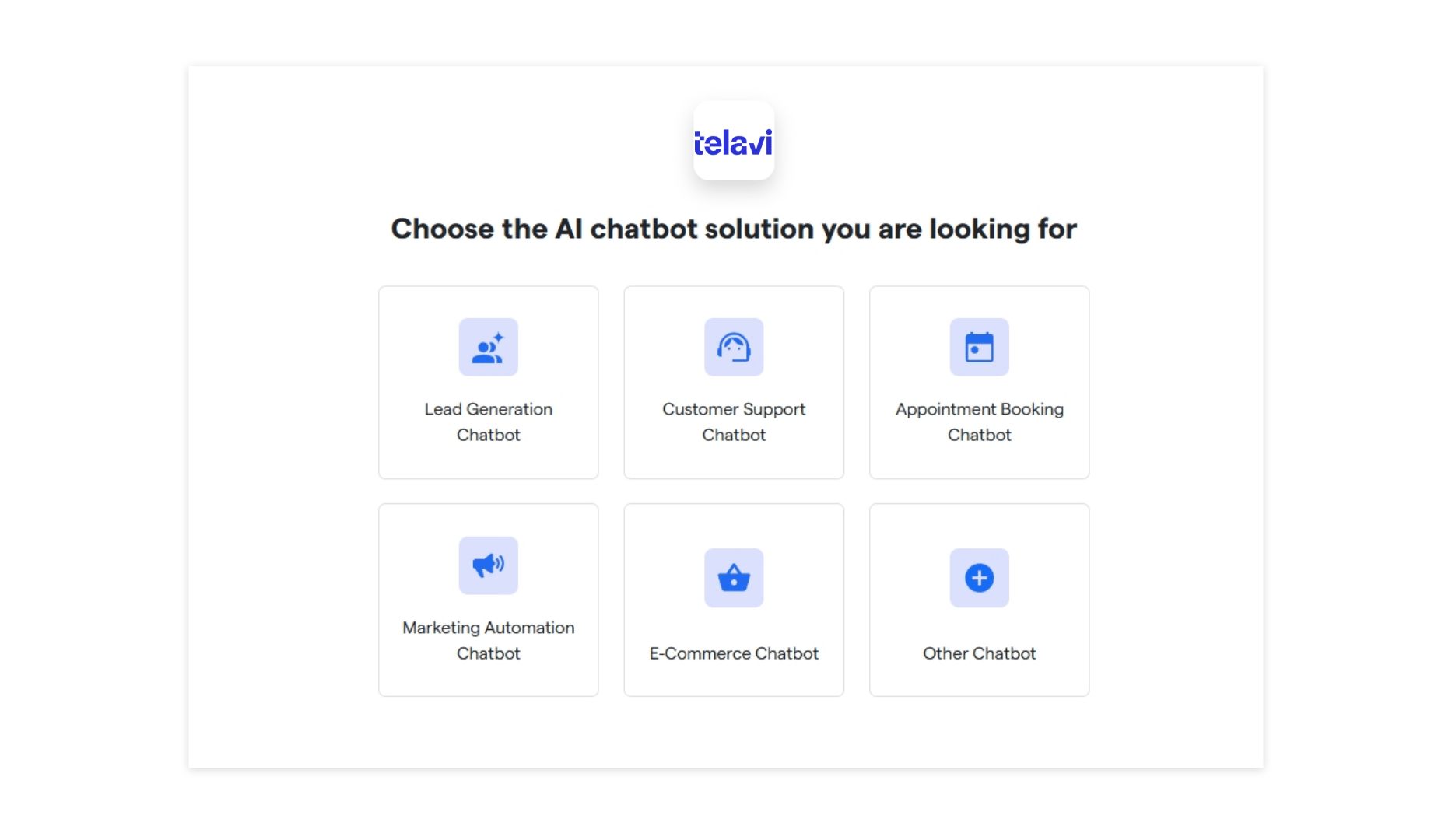
2. To start creating your new chatbot, click "Create New Bot." Select the primary purpose for creating your bot and proceed further.
<img src="https://mintcdn.com/telavi/coZiJ9Ha2gGa5SDj/images/how-TelaviOneChatAI-works/create-newchatbot/5.website_chatbot__TelaviOneChatAI_resource_centre-2.png?fit=max&auto=format&n=coZiJ9Ha2gGa5SDj&q=85&s=76469ca95407fac74dcd19ee9dde7b27" alt="5 Website Chatbot TelaviOneChatAI Resource Centre 2 Pn" width="1866" height="1080" data-path="images/how-TelaviOneChatAI-works/create-newchatbot/5.website_chatbot__TelaviOneChatAI_resource_centre-2.png" />

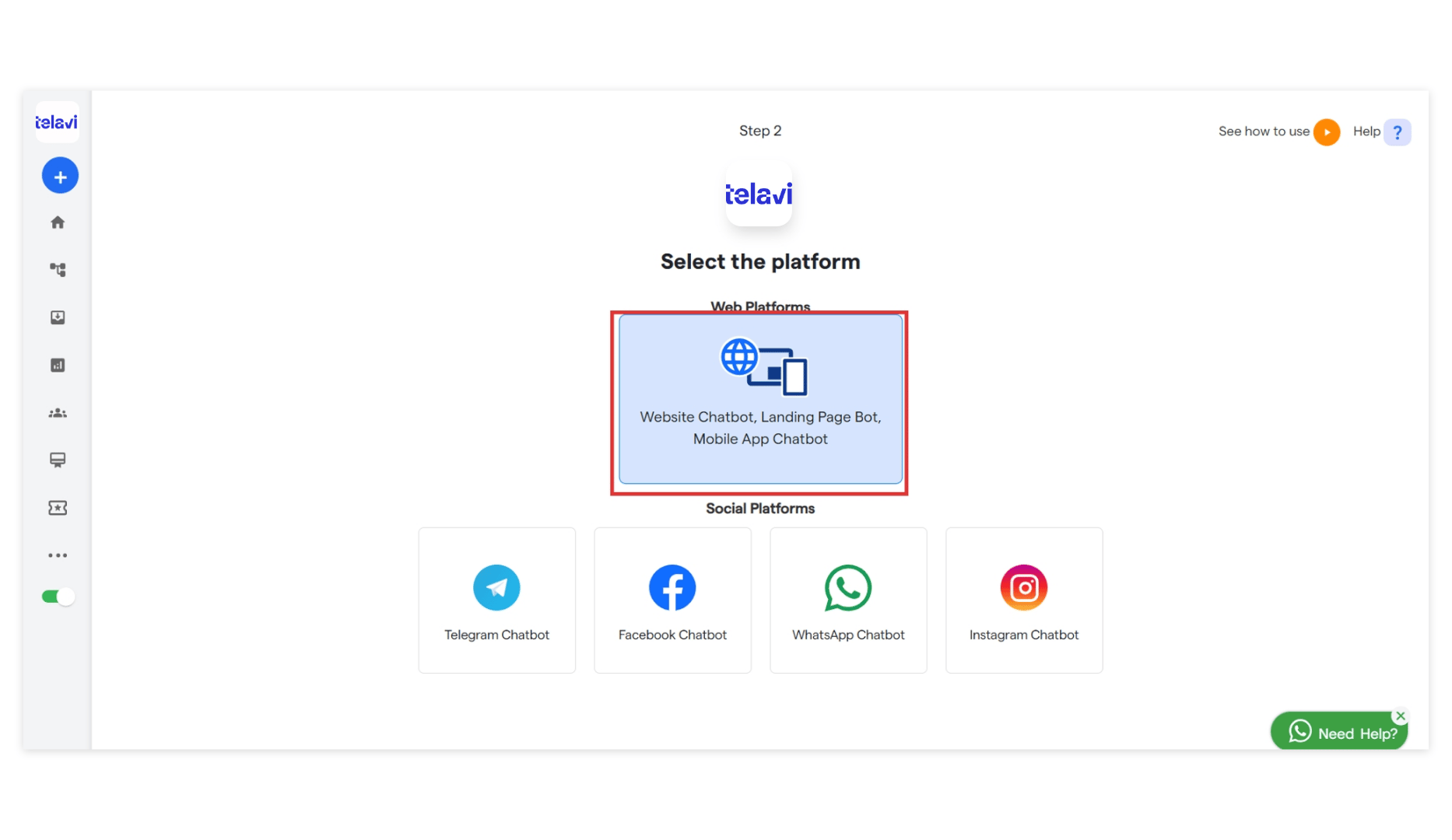
3. Select the platform: “Website Chatbot”
<img src="https://mintcdn.com/telavi/coZiJ9Ha2gGa5SDj/images/how-TelaviOneChatAI-works/create-newchatbot/5.website_chatbot__TelaviOneChatAI_resource_centre-3.png?fit=max&auto=format&n=coZiJ9Ha2gGa5SDj&q=85&s=64c9ada10041cf1683db32f9a1c02460" alt="5 Website Chatbot TelaviOneChatAI Resource Centre 3 Pn" width="1866" height="1080" data-path="images/how-TelaviOneChatAI-works/create-newchatbot/5.website_chatbot__TelaviOneChatAI_resource_centre-3.png" />

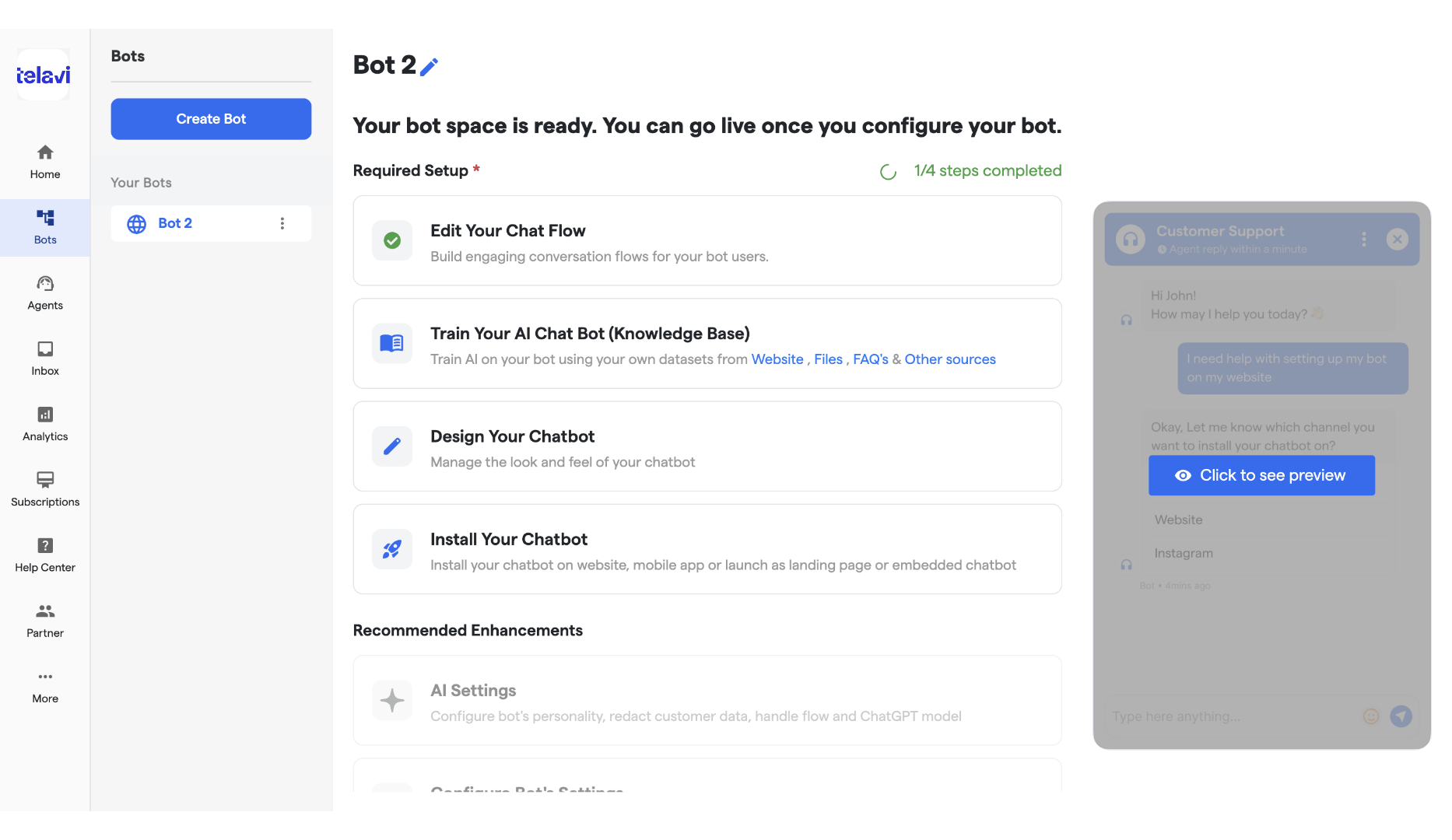
4. You will see a notification: "**Bot has been successfully created.**” Your bot has been successfully created. Then you will land up on this page, now you can configure the below mentioned items using the below links:
<img src="https://mintcdn.com/telavi/coZiJ9Ha2gGa5SDj/images/how-TelaviOneChatAI-works/create-newchatbot/5.website_chatbot__TelaviOneChatAI_resource_centre-5.png?fit=max&auto=format&n=coZiJ9Ha2gGa5SDj&q=85&s=c299a3e48ba0623c07ca96fd98cbf1f5" alt="5 Website Chatbot TelaviOneChatAI Resource Centre 5 Pn" width="1866" height="1080" data-path="images/how-TelaviOneChatAI-works/create-newchatbot/5.website_chatbot__TelaviOneChatAI_resource_centre-5.png" />

<Info>
  [Next: Landing Page Chatbot →](/how-TelaviOneChatAI-works/landing_page_chatbot)
</Info>
