> ## Documentation Index
> Fetch the complete documentation index at: https://help-onechatai.telavi.com.ph/llms.txt
> Use this file to discover all available pages before exploring further.
# AI Settings
> This page contains the information on how you can use the TelaviOneChatAI AI to enhance your chatbot capabilities.
### TelaviOneChatAI AI
TelaviOneChatAI utilizes a combination of ChatGPT, proprietary technology, and specialized training to create custom AI models tailored to your business's unique knowledge and customer service needs.
You can feed data to your custom AI model through various sources, including website URLs, content files, and FAQs. This enables TelaviOneChatAI to develop AI solutions that deliver exceptional service and support to your customers by leveraging both publicly available information and your business-specific data.
***
### Setup ChatGPT and AI Settings
**Step 1: Create Your Bot**
* Begin by creating your chatbot. Once completed, proceed to the next step.
***
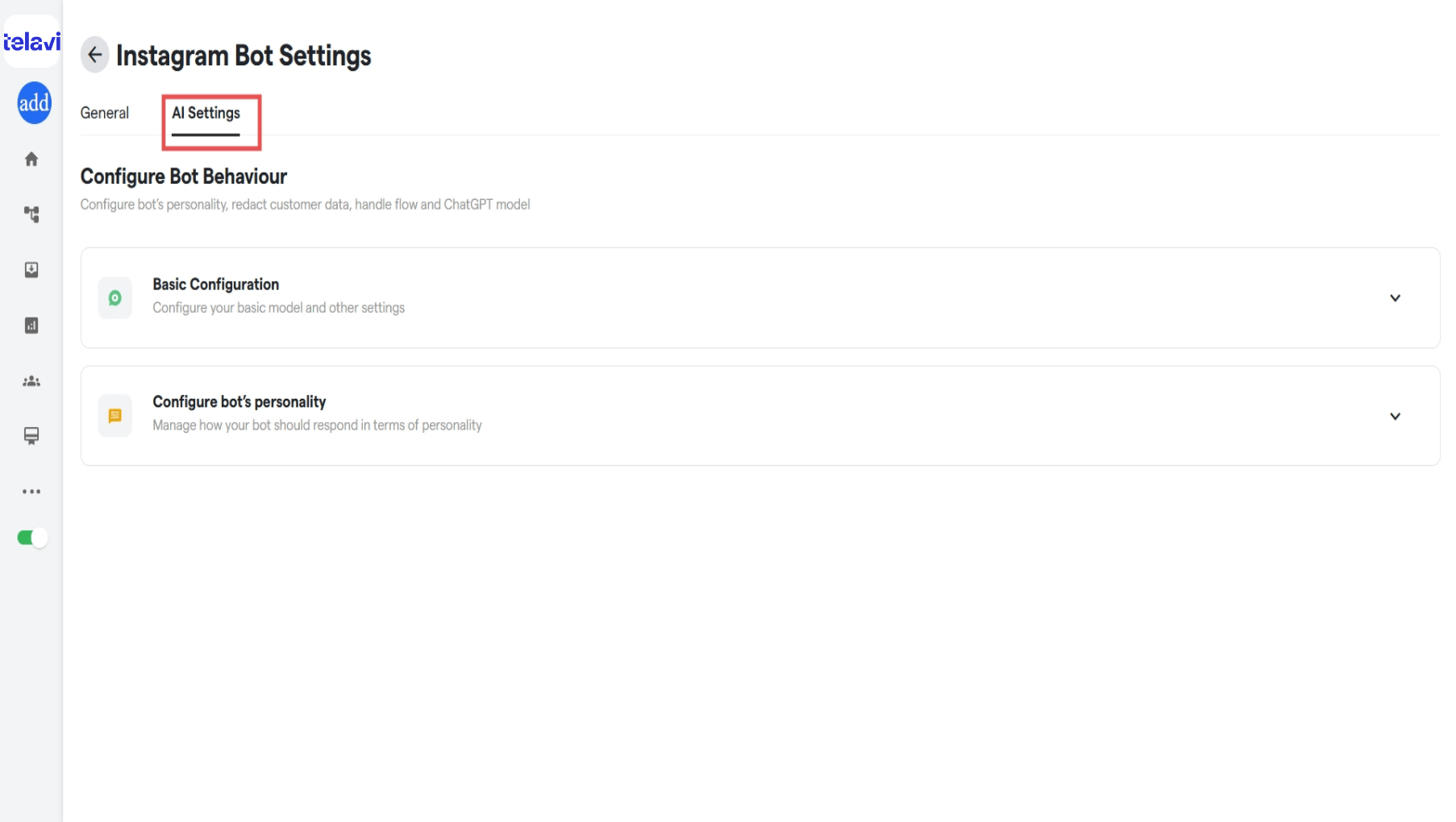
**Step 2: Navigate to AI Settings**
* Go to **"AI Settings"** inside **"Instagram Chatbot Settings"**.
 ***
**Step 3: Create a Persona**
* Click on **"Create a Persona"**.
***
**Step 3: Create a Persona**
* Click on **"Create a Persona"**.
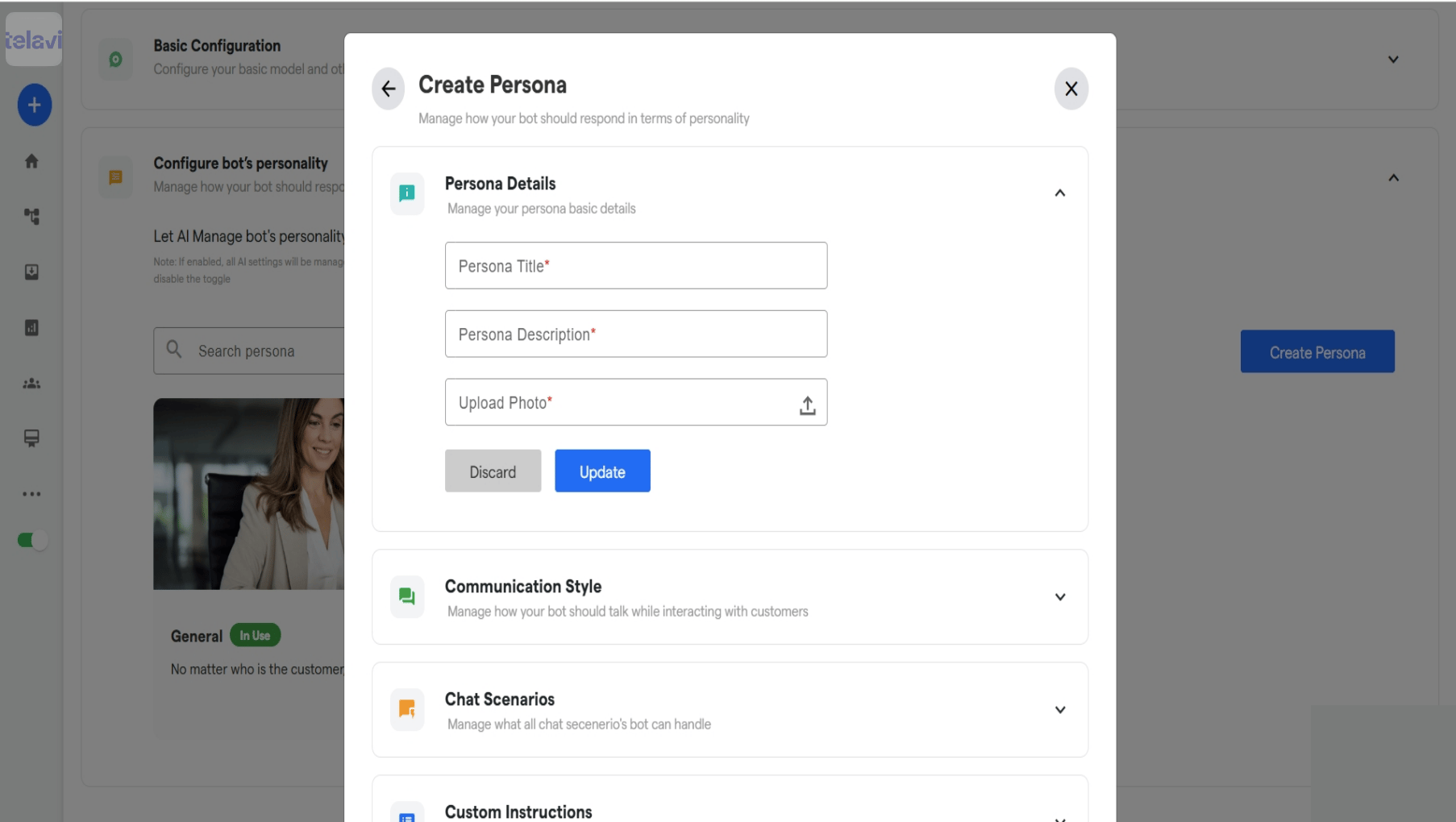 In these settings, you can define the persona to configure:
* **Bot's Personality**
* **Answer Length**
* **Answer Perspective** (1st person, 3rd person, etc.)
* **Tone**
* **Language**
* **Answer Formatting**
* **Included Sources for Response**
* **Custom Prompt Instructions**
* **Unusual Chat Scenarios**
* **Message for When Bot Can't Answer**
* **Message for Responding to Inappropriate Language**
***
**Persona Details**
In these settings, you can define the persona to configure:
* **Bot's Personality**
* **Answer Length**
* **Answer Perspective** (1st person, 3rd person, etc.)
* **Tone**
* **Language**
* **Answer Formatting**
* **Included Sources for Response**
* **Custom Prompt Instructions**
* **Unusual Chat Scenarios**
* **Message for When Bot Can't Answer**
* **Message for Responding to Inappropriate Language**
***
**Persona Details**
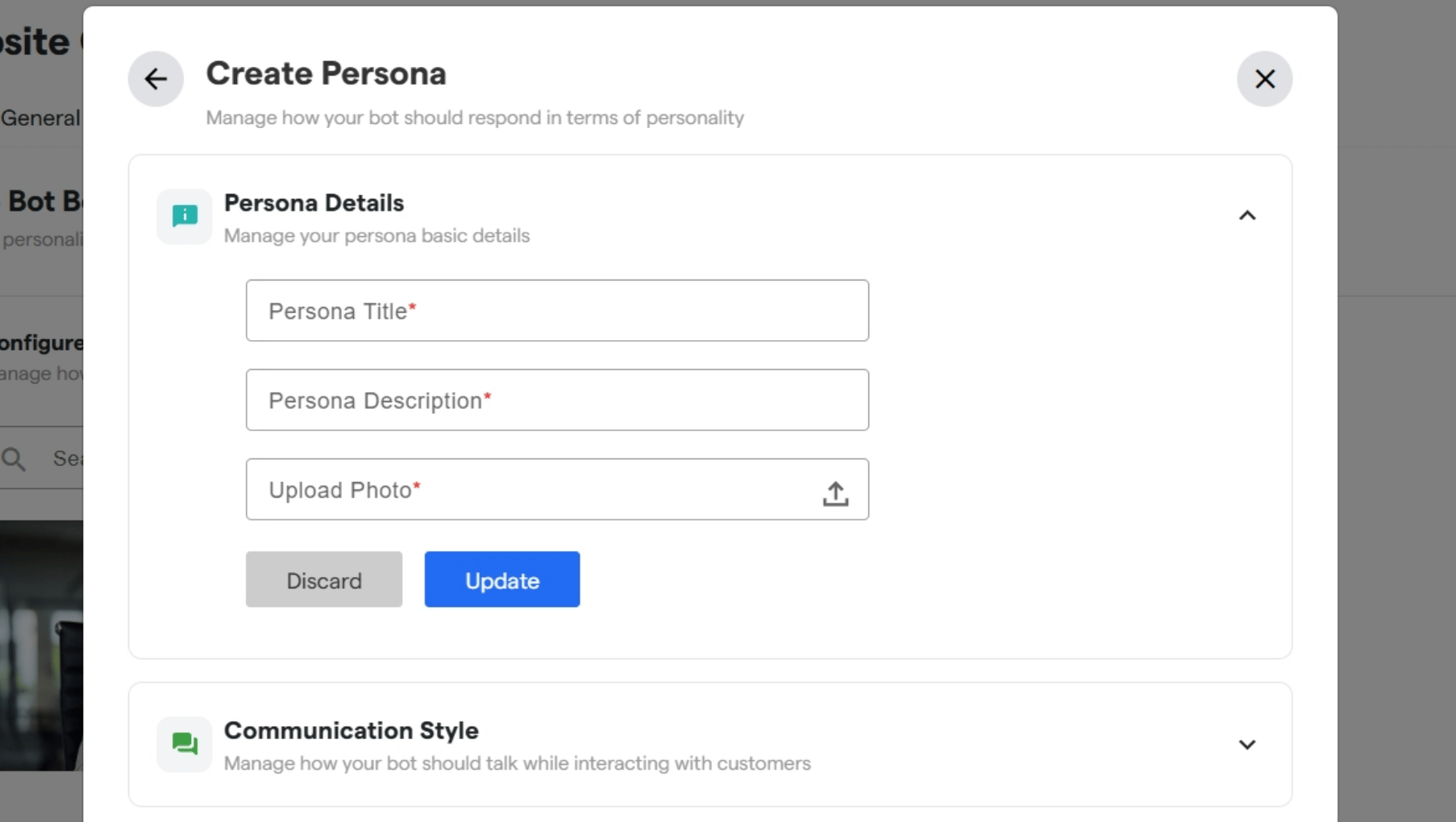 * Enter the persona title, description, and upload a cover photo for your bot's persona.
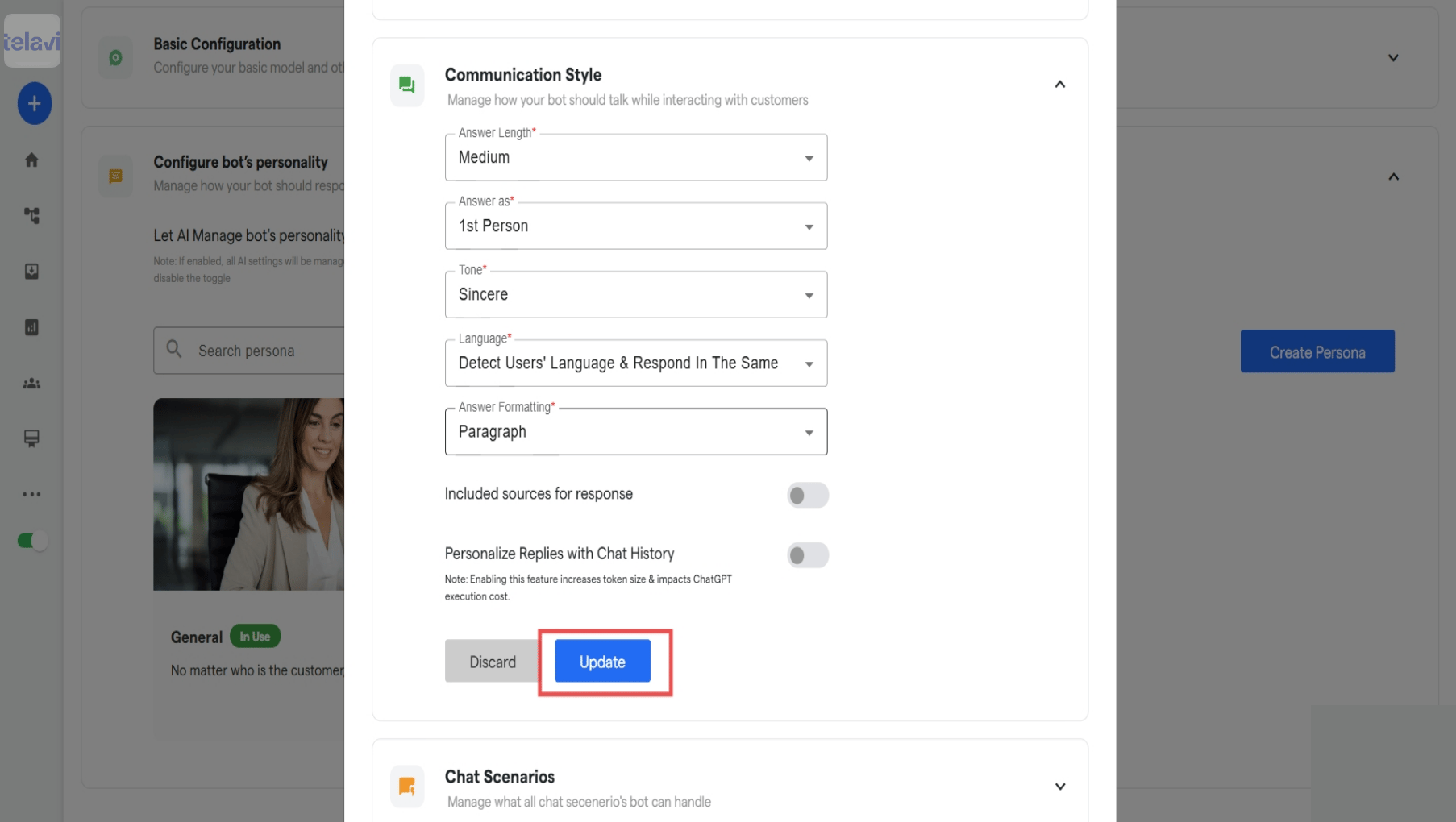 * Under **Communication Style**, configure answer length, answer perspective, tone, language, and answer formatting.
* You can toggle **Sources** and **Personalize Replies with Chat History** on or off.
If **"Include Sources for Response"** is ON, the bot will share the source name from the knowledge base in its replies.
***
**Chat Scenarios**
* Under **Communication Style**, configure answer length, answer perspective, tone, language, and answer formatting.
* You can toggle **Sources** and **Personalize Replies with Chat History** on or off.
If **"Include Sources for Response"** is ON, the bot will share the source name from the knowledge base in its replies.
***
**Chat Scenarios**
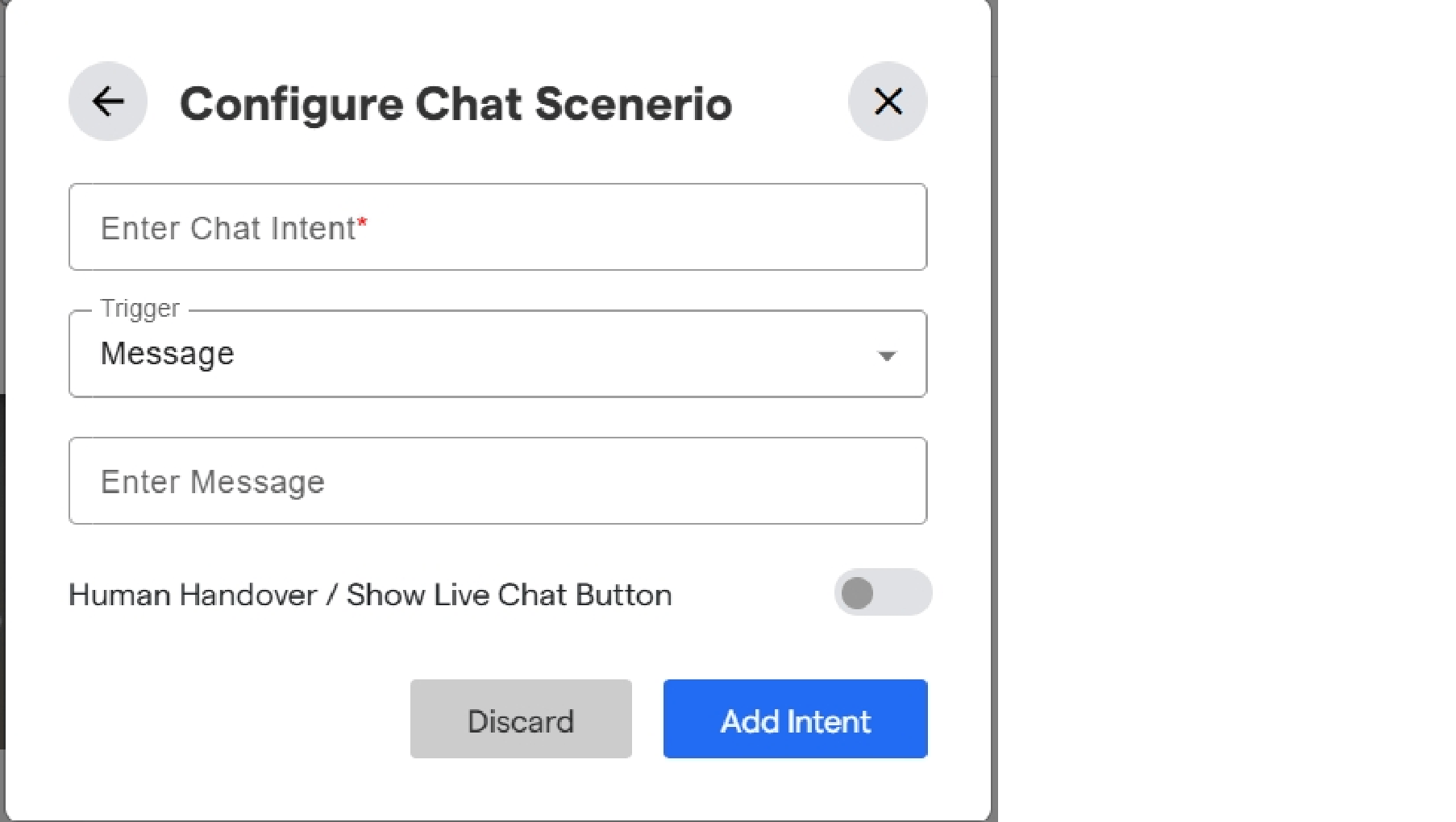
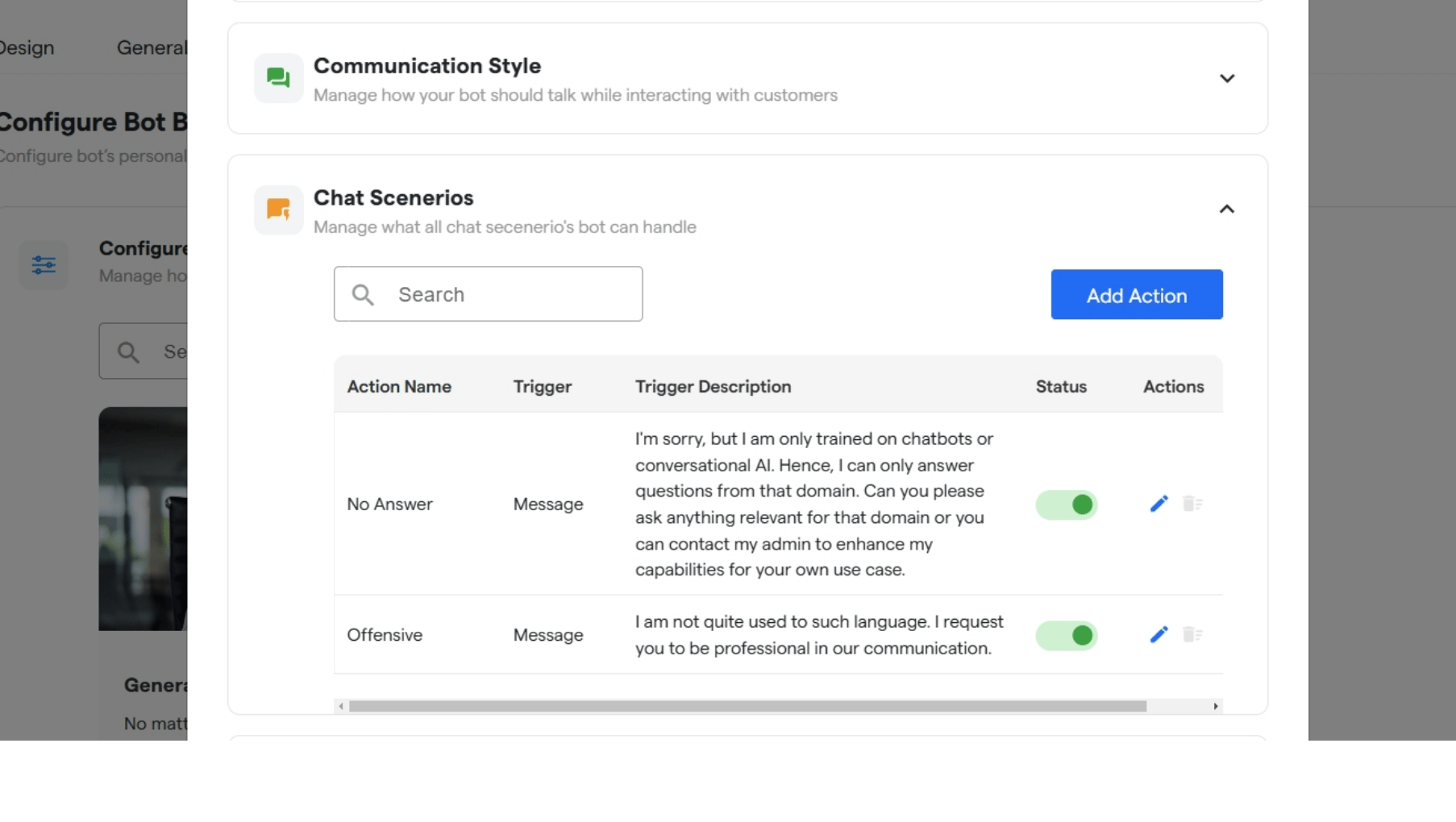 * Click **"Add Action"** to add a chat scenario.
* Select or add an action that gets triggered based on the user's response.
* Add a keyword based on which the LLM will identify chat intent and respond with the message or flow set by you.
* Toggle ON/OFF to show a live chat button when the scenario is identified.
* Click **"Add Action"** to add a chat scenario.
* Select or add an action that gets triggered based on the user's response.
* Add a keyword based on which the LLM will identify chat intent and respond with the message or flow set by you.
* Toggle ON/OFF to show a live chat button when the scenario is identified.
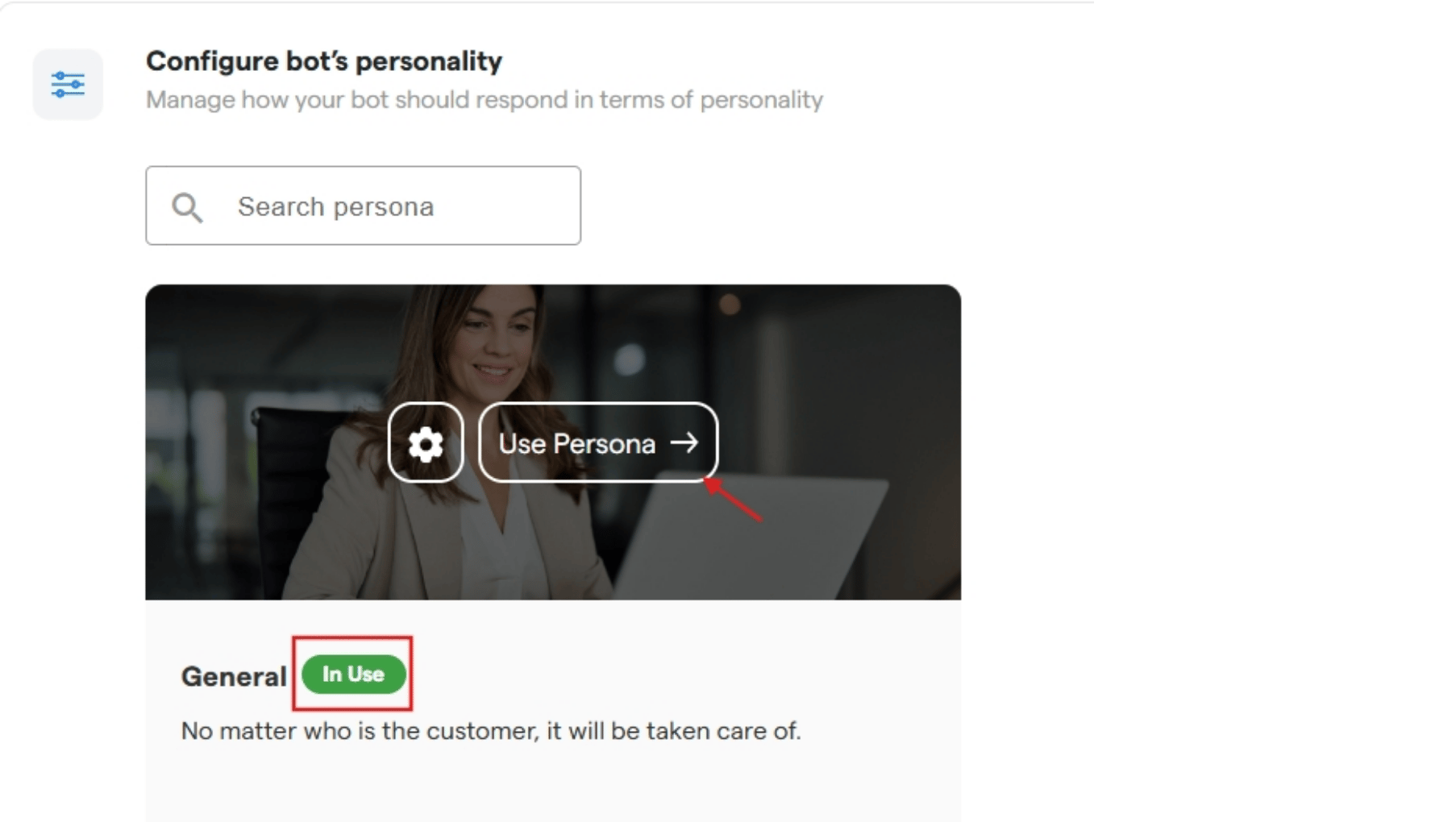
 * Under **Custom Instructions**, add a prompt that best defines your bot's persona. Example: *"Act as a salesman, use a formal tone, and be polite and friendly."*
* Click **"Update"** to save changes.
* Click **"Use Persona"** to apply it to your chatflow.
***
**Persona in Chatflow**
* Under **Custom Instructions**, add a prompt that best defines your bot's persona. Example: *"Act as a salesman, use a formal tone, and be polite and friendly."*
* Click **"Update"** to save changes.
* Click **"Use Persona"** to apply it to your chatflow.
***
**Persona in Chatflow**
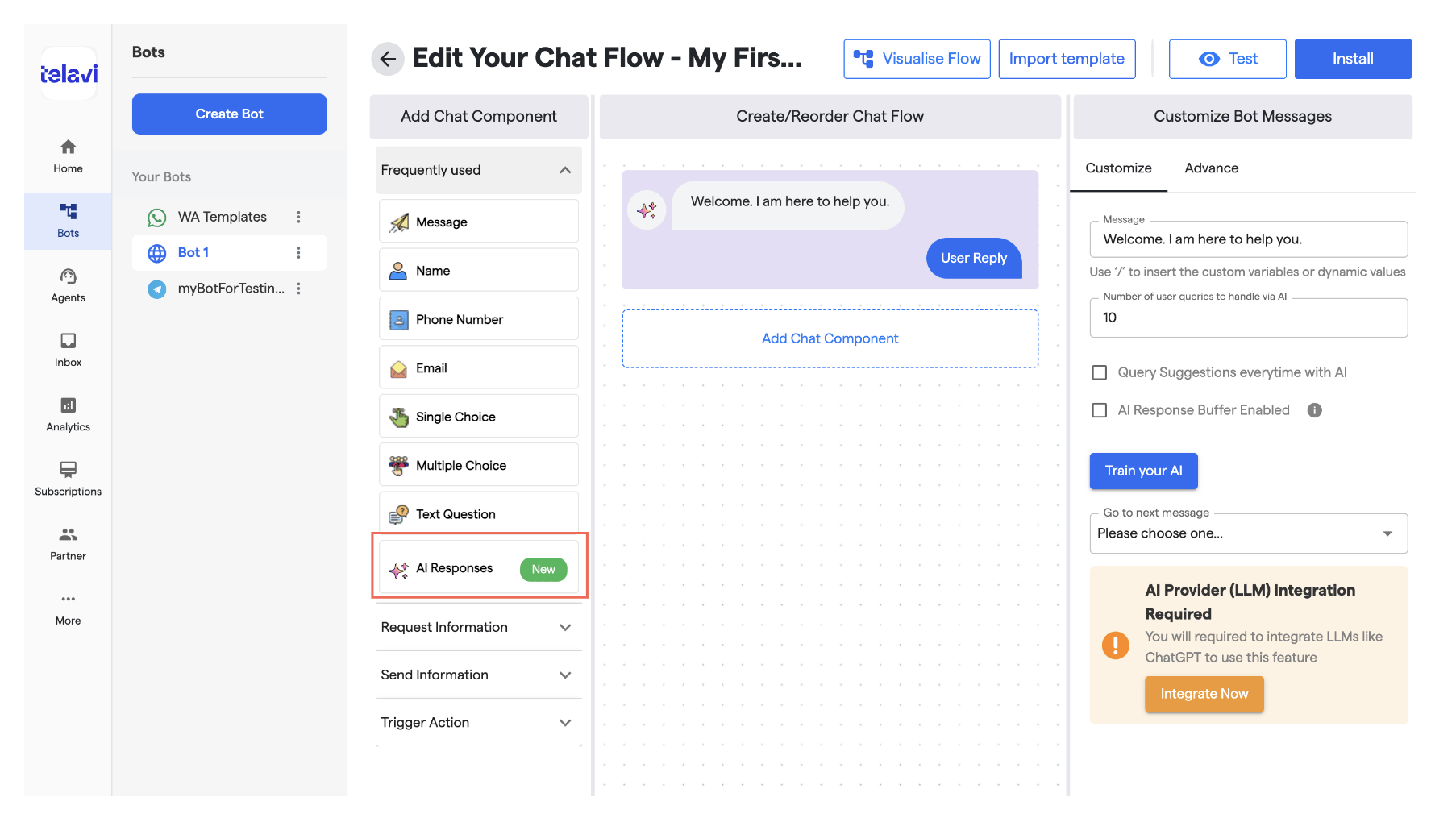
 * The AI model in your chatflow will now work based on the persona you have set.
You can decide how many queries are handled via AI before continuing your chatflow. This is available under **Customize Bot Message**.
* The AI model in your chatflow will now work based on the persona you have set.
You can decide how many queries are handled via AI before continuing your chatflow. This is available under **Customize Bot Message**.
 ***
**Step 4: Configure ChatGPT Component**
* Integrate the ChatGPT model with your bot for better outputs.
* You can invoke the ChatGPT component at multiple points in the chatflow as needed.
* Select the GPT model you want to use after integrating with ChatGPT.
By default, the model is set to **GPT-3.5 Turbo**.
***
You're done! Whenever the ChatGPT component is invoked, your custom-trained model will provide responses based on the settings and training you have configured, enhancing your chatbot's conversational abilities.
***
**Step 4: Configure ChatGPT Component**
* Integrate the ChatGPT model with your bot for better outputs.
* You can invoke the ChatGPT component at multiple points in the chatflow as needed.
* Select the GPT model you want to use after integrating with ChatGPT.
By default, the model is set to **GPT-3.5 Turbo**.
***
You're done! Whenever the ChatGPT component is invoked, your custom-trained model will provide responses based on the settings and training you have configured, enhancing your chatbot's conversational abilities.