> ## Documentation Index
> Fetch the complete documentation index at: https://help-onechatai.telavi.com.ph/llms.txt
> Use this file to discover all available pages before exploring further.

# Business hour

<Info>
  Note: The "Business hours" feature is only accessible to users on the King Plan.
</Info>

The **Business Hours** subsection allows you to set your organization’s working hours, including specific days and shifts (like night shifts).

## **How to set Business hours:**

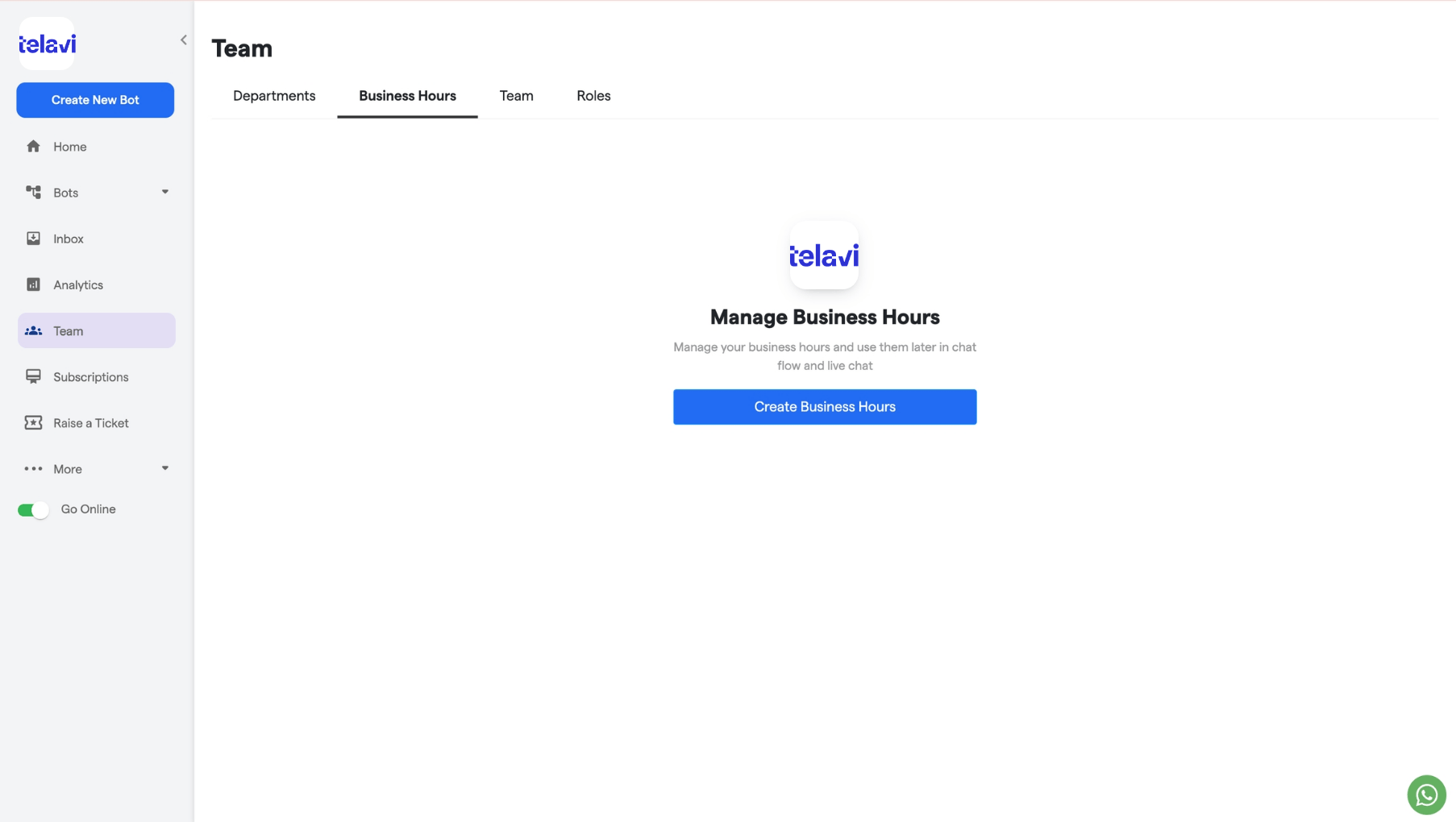
1. Click on the "**Create Business Hours**" button to set business hours.
   <img src="https://mintcdn.com/telavi/Ft7BKZGbDlbNBral/images/how-TelaviOneChatAI-works/business-hour/182.business_hours__TelaviOneChatAI_resource_centre-1.png?fit=max&auto=format&n=Ft7BKZGbDlbNBral&q=85&s=0d44038689c1117bfd6b7b2c107ea3a0" alt="182 Business Hours  TelaviOneChatAI Resource Centre 1 Pn" width="1806" height="1020" data-path="images/how-TelaviOneChatAI-works/business-hour/182.business_hours__TelaviOneChatAI_resource_centre-1.png" />
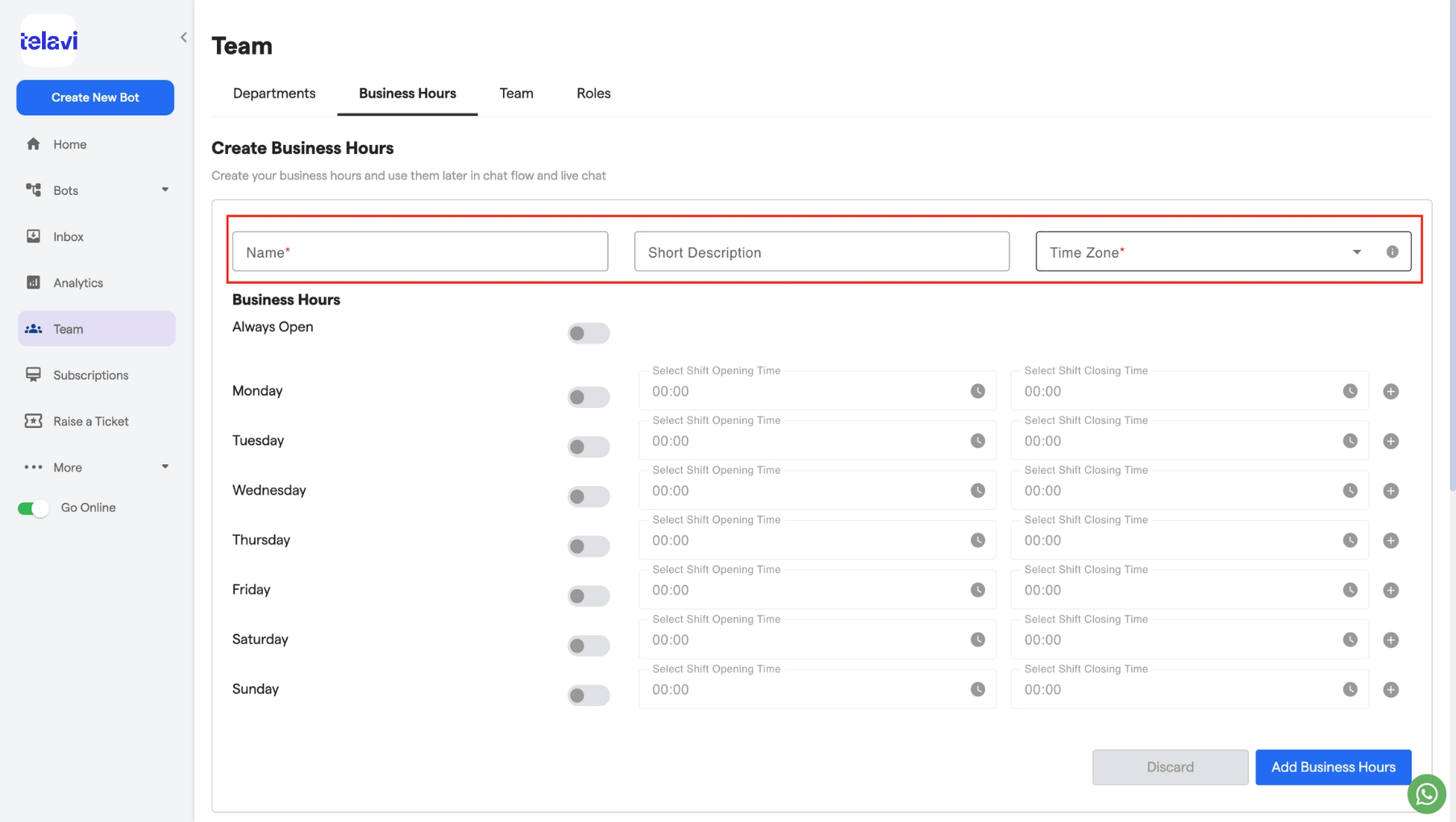
2. Fill out the **Name** field and add a short description.
3. Select the time zone and the business days.
   <img src="https://mintcdn.com/telavi/Ft7BKZGbDlbNBral/images/how-TelaviOneChatAI-works/business-hour/182.business_hours__TelaviOneChatAI_resource_centre-2.png?fit=max&auto=format&n=Ft7BKZGbDlbNBral&q=85&s=26644acf774b5f6dac67b0b7db704353" alt="182 Business Hours  TelaviOneChatAI Resource Centre 2 Pn" width="1806" height="1020" data-path="images/how-TelaviOneChatAI-works/business-hour/182.business_hours__TelaviOneChatAI_resource_centre-2.png" />
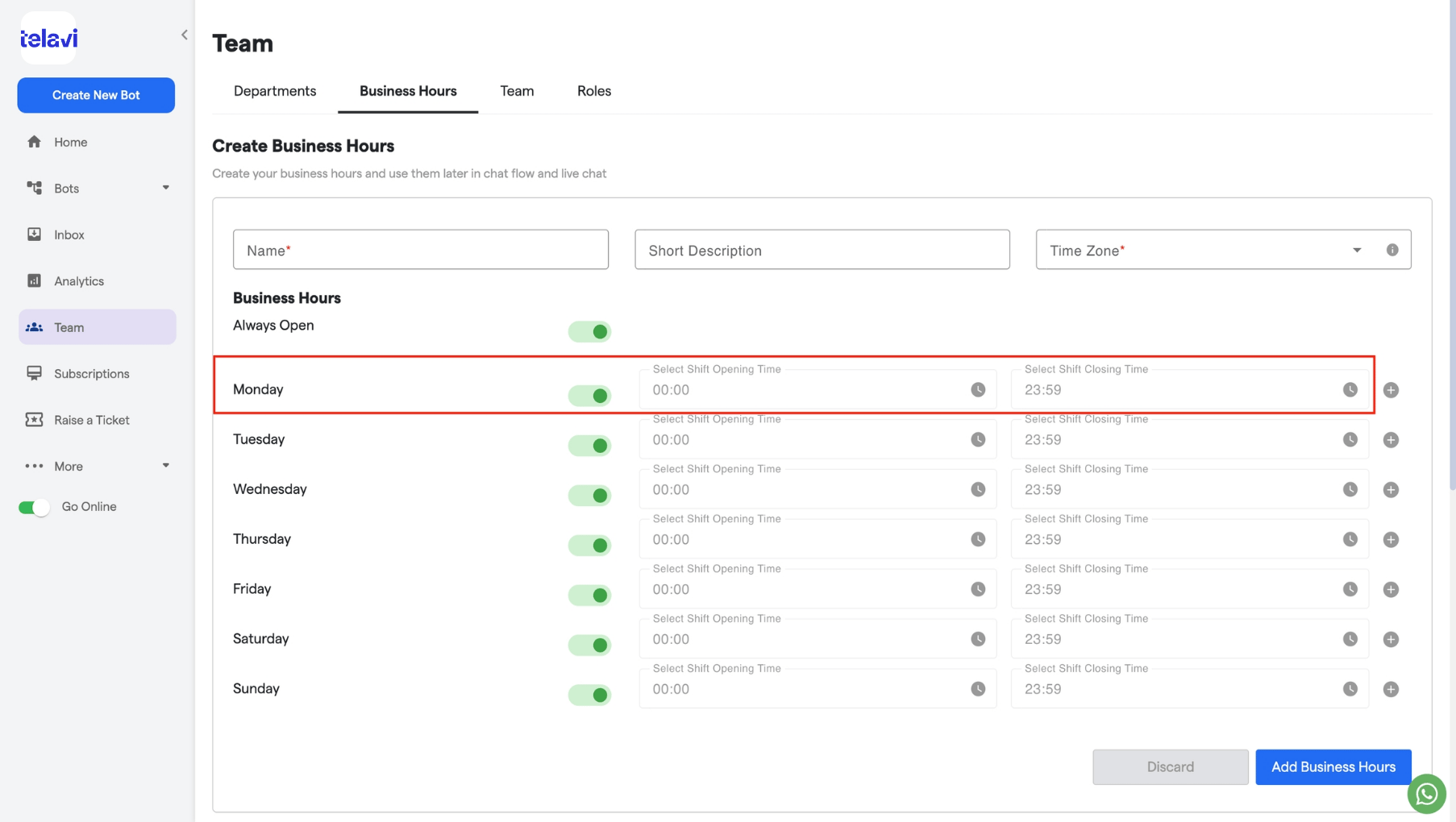
4. Choose the corresponding start and end times for each working day.
   <img src="https://mintcdn.com/telavi/Ft7BKZGbDlbNBral/images/how-TelaviOneChatAI-works/business-hour/182.business_hours__TelaviOneChatAI_resource_centre-3.png?fit=max&auto=format&n=Ft7BKZGbDlbNBral&q=85&s=7dd819257080b60c5c5991ade601930d" alt="182 Business Hours  TelaviOneChatAI Resource Centre 3 Pn" width="1806" height="1020" data-path="images/how-TelaviOneChatAI-works/business-hour/182.business_hours__TelaviOneChatAI_resource_centre-3.png" />
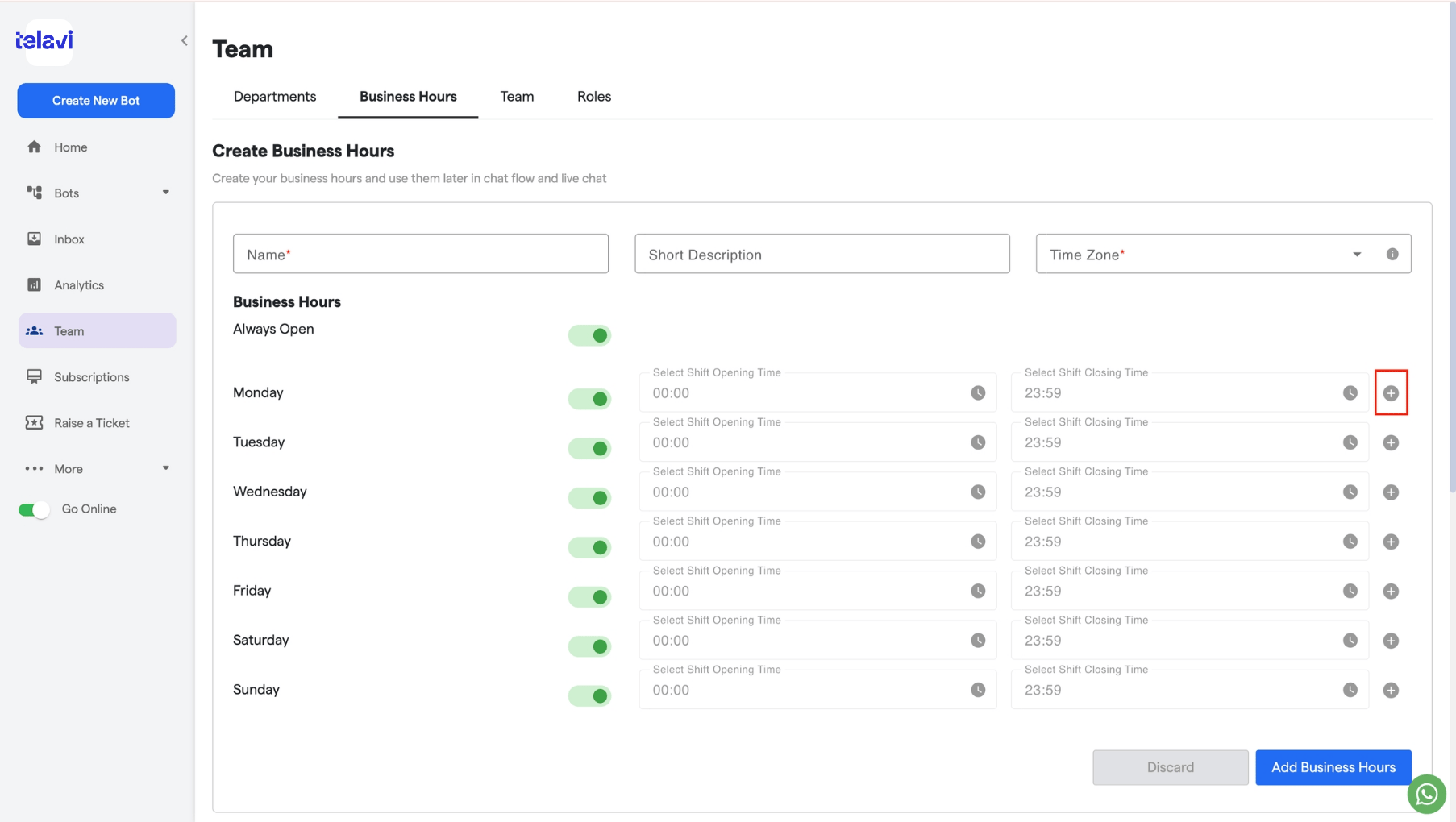
5. If there is a night shift or additional shift, click on the **+** icon to create a second shift.
   <img src="https://mintcdn.com/telavi/Ft7BKZGbDlbNBral/images/how-TelaviOneChatAI-works/business-hour/182.business_hours__TelaviOneChatAI_resource_centre-4.png?fit=max&auto=format&n=Ft7BKZGbDlbNBral&q=85&s=47a77be1e3692bef5a5ef8238cd20d58" alt="182 Business Hours  TelaviOneChatAI Resource Centre 5 Pn" width="1806" height="1020" data-path="images/how-TelaviOneChatAI-works/business-hour/182.business_hours__TelaviOneChatAI_resource_centre-4.png" />
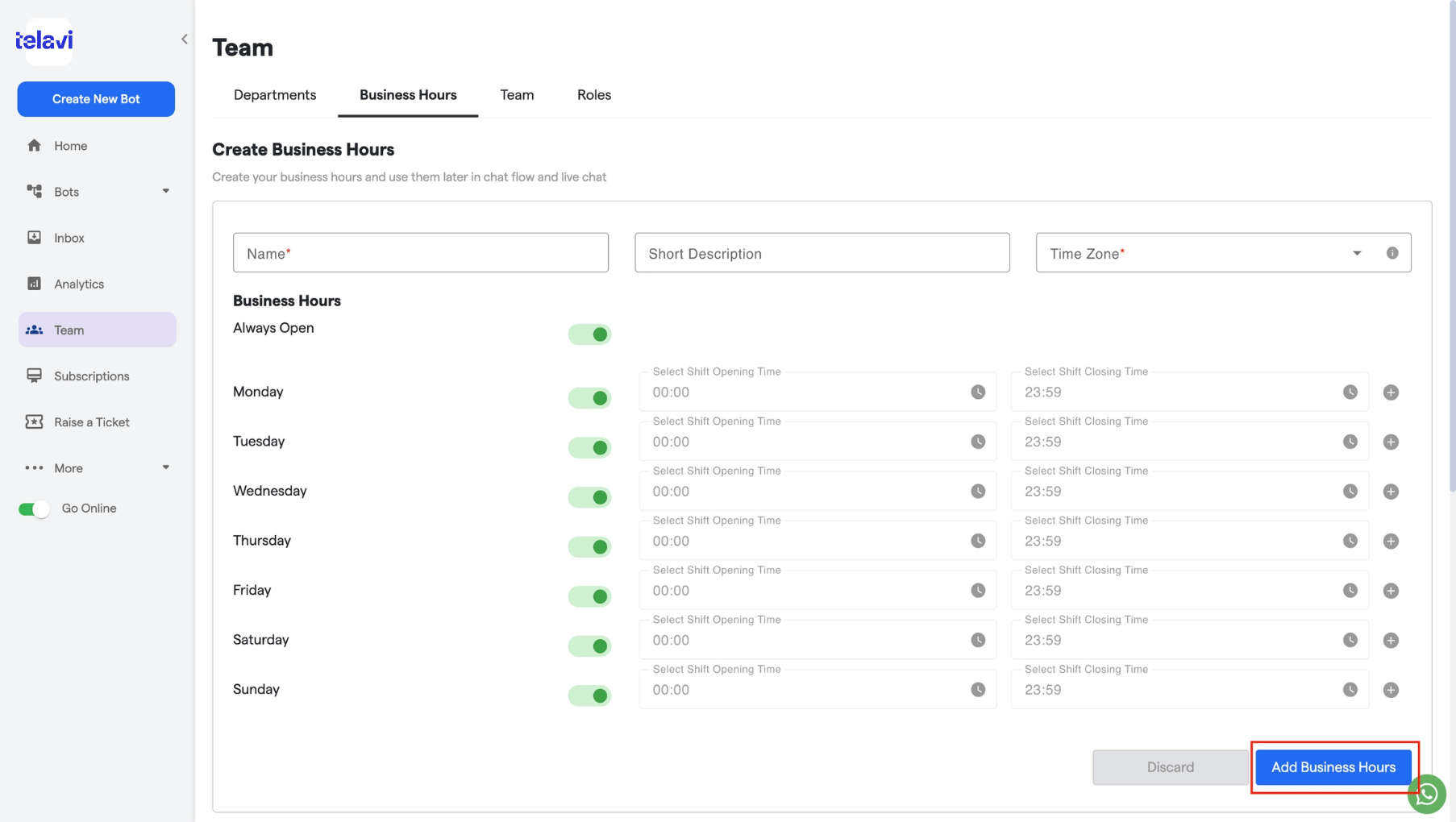
6. Click **Add Business Hours** to save.
   <img src="https://mintcdn.com/telavi/Ft7BKZGbDlbNBral/images/how-TelaviOneChatAI-works/business-hour/182.business_hours__TelaviOneChatAI_resource_centre-5.png?fit=max&auto=format&n=Ft7BKZGbDlbNBral&q=85&s=0ee0dd07148050d6b0d8329deb6748c8" alt="182 Business Hours  TelaviOneChatAI Resource Centre 5 Pn" width="1806" height="1020" data-path="images/how-TelaviOneChatAI-works/business-hour/182.business_hours__TelaviOneChatAI_resource_centre-5.png" />
